
How to Actually Update Dropdown Links in Webflow (Without Losing Your Mind in the Navigator)

Ever tried updating a dropdown menu in Webflow and found yourself clicking through what feels like 47 nested divs in the Navigator?
You know the drill:
- Click navbar12_wrapper
- Then navbar12_component
- Then navbar12_container
- Then navbar12_menu-dropdown
- Then navbar12_dropdown-list
- Then navbar12_dropdown-link...
And you're sitting there like, "There HAS to be a better way."
Good news: There is.
The Navigator Maze (What NOT to Do)
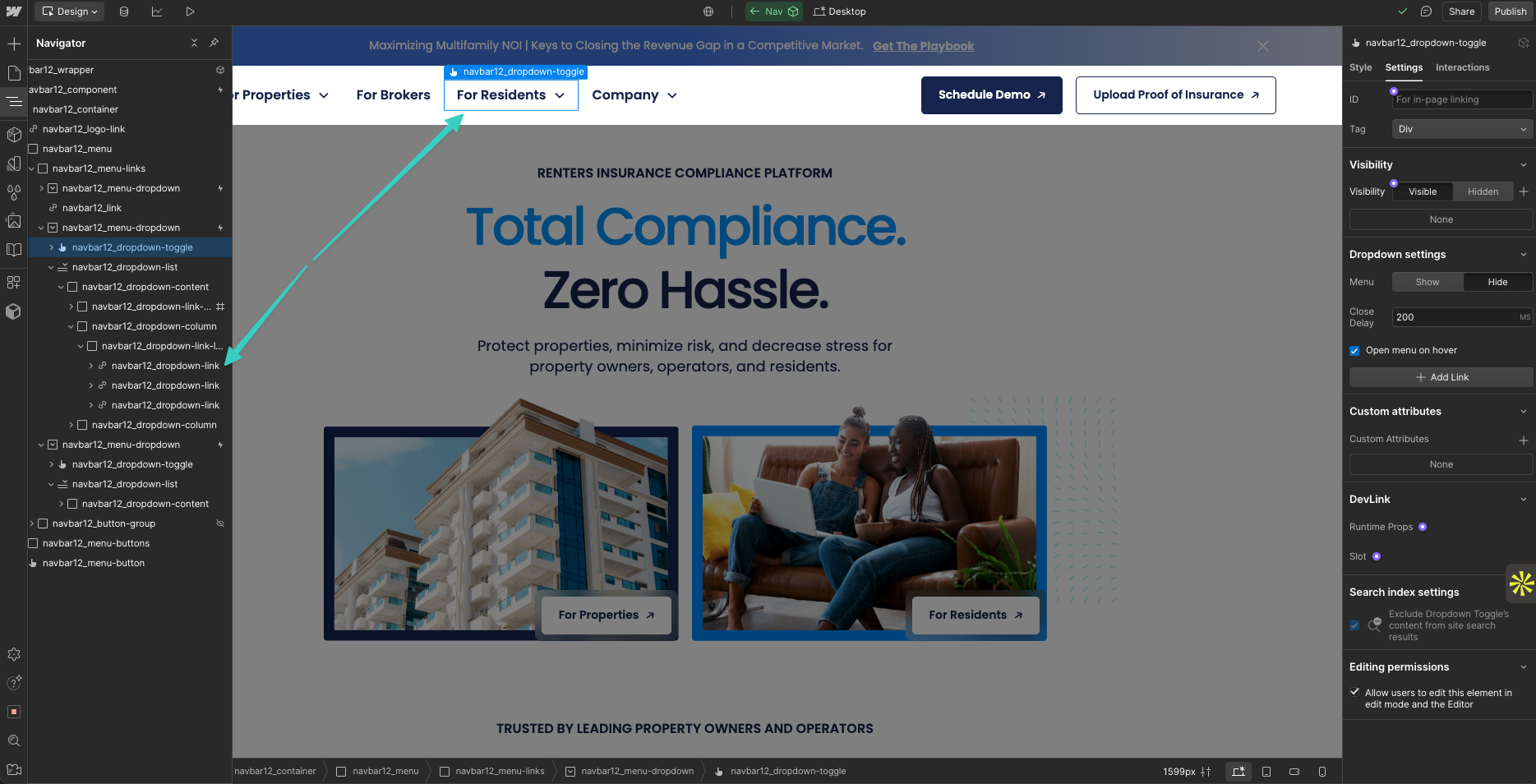
Sure, you can dive into the Navigator panel and expand every single element until you find that one link buried deep in your dropdown structure.
It works. But it's like using a map from 1995 when you have GPS on your phone.
The Smart Way: Use the Settings Panel
Here's the trick most people miss:
Step 1: Select your dropdown toggle
Click on the actual dropdown button in your navbar (like "For Residents" in the example).
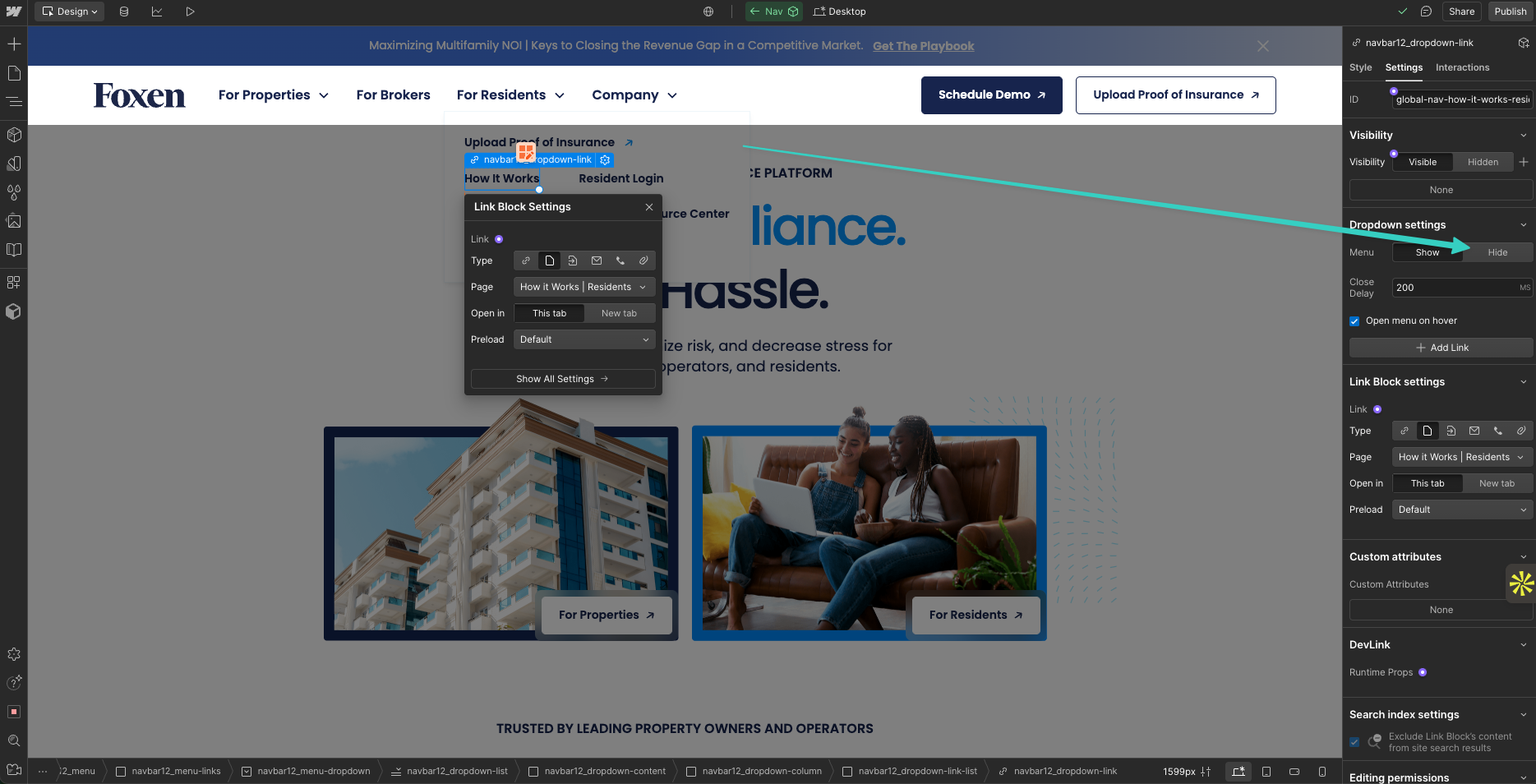
Step 2: Look right → Find "Dropdown Settings"
In the Element Settings panel on the right, scroll down to find the "Dropdown Settings" section.
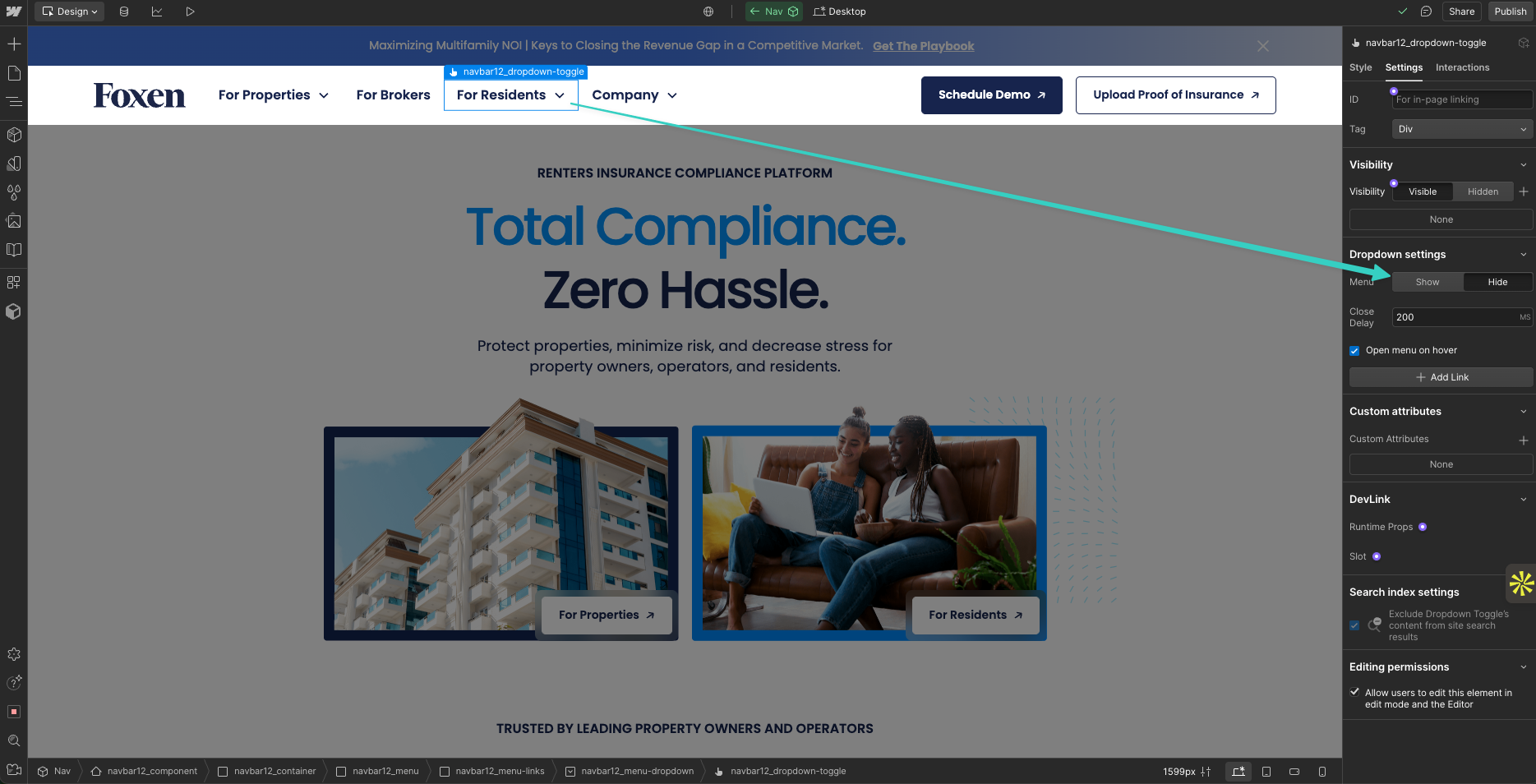
Step 3: Click "Show" to reveal the menu
See that "Show" button in the Dropdown Settings? Click it. This makes your dropdown menu visible so you can actually edit the links inside it.
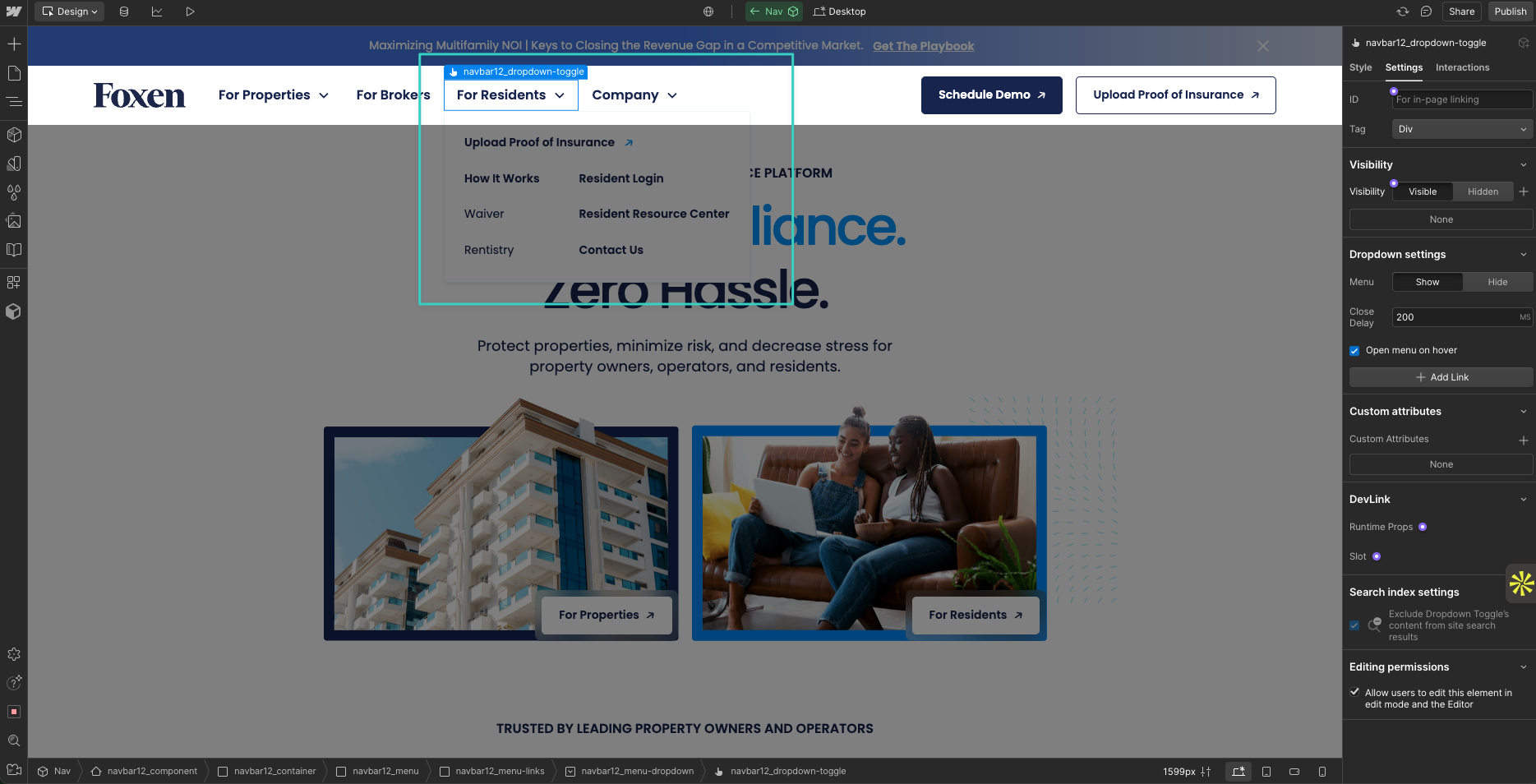
Step 4: Update your links directly
Now you can:
- Change where each dropdown item links to
- Update the link text
- Adjust opening behaviors
- All without playing Navigator hide-and-seek
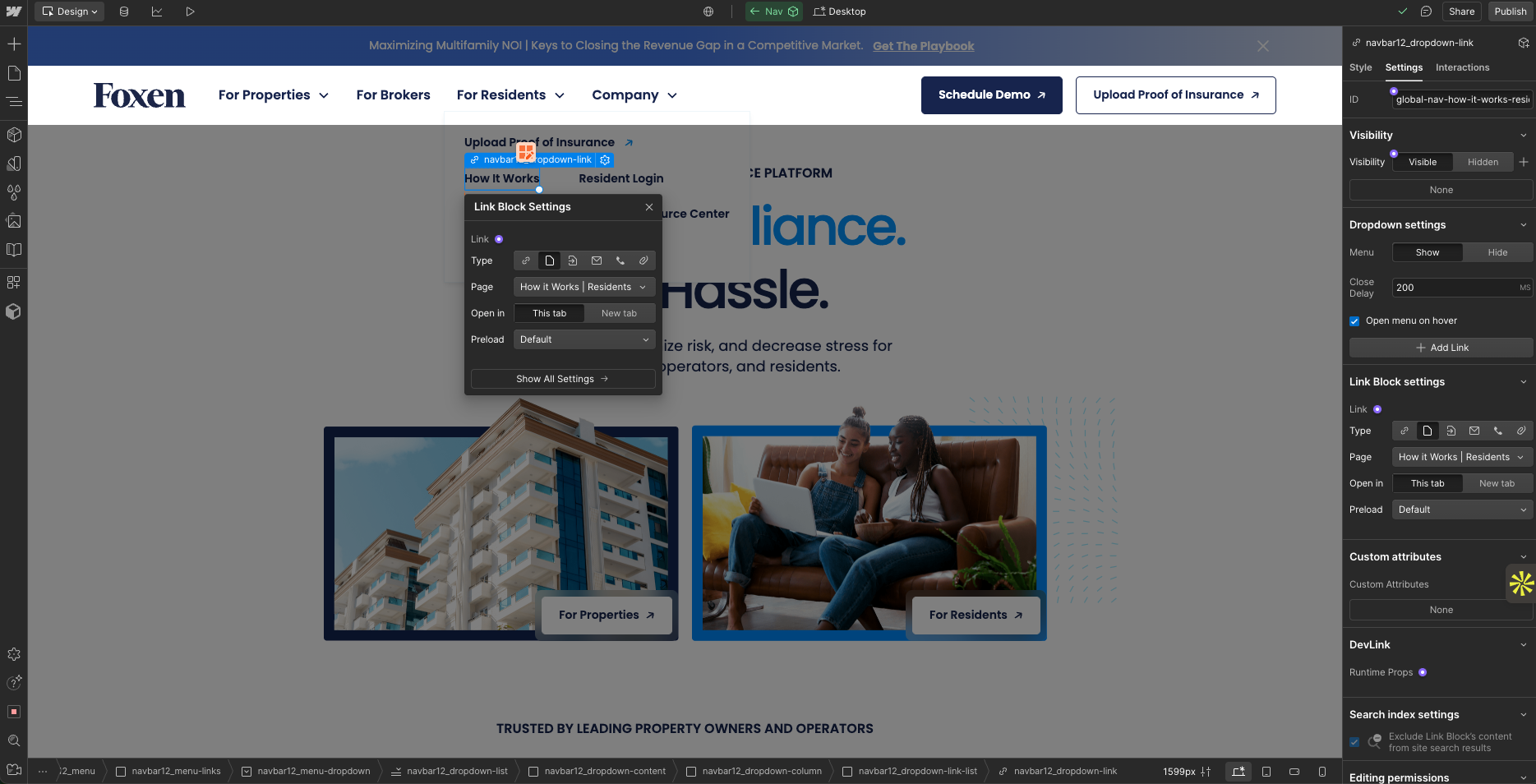
Step 5: When you're done, click "Hide" to close it up
Finished making your changes? Just go back to that same Dropdown Settings section and click "Hide". Your dropdown returns to its normal closed state, and you're ready to move on.
Why This Method Wins
✅ You can see what you're editing — The dropdown stays open while you work
✅ Direct access — Click the actual link you want to change
✅ No more guessing — You're editing the exact element you're looking at
✅ Clean finish — One click to hide it when you're done
Pro Tip: The "Open menu on hover" Checkbox
While you're in there, notice that checkbox at the bottom of the Link Block settings? That controls whether your dropdown appears on hover or click.
Most people hunt for this setting for ages. Now you know exactly where it lives.
The Bottom Line
Next time you need to update a dropdown menu in Webflow, skip the Navigator archaeology expedition and just:
- Click the dropdown toggle
- Go to Dropdown Settings → Click "Show"
- Click the link you want to change
- Make your edits
- Click "Hide" when you're done
Because let's be honest — you've got better things to do than play "find the link block" in a sea of nested divs.
When in doubt, show the dropdown first, hide it last.