
How to Link to CMS Pages in Webflow Without Breaking Your Staging Site

Here’s a little Webflow quirk you might’ve run into:
You’re inside a CMS item, trying to link to another CMS page… and Webflow says,
“Cool, but I’m not gonna give you a dropdown to pick that page. You’re on your own.”
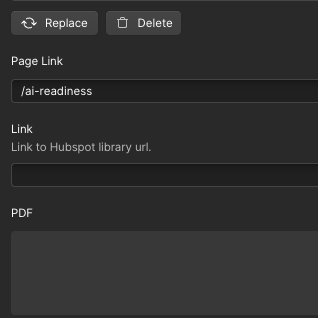
Yep. In the CMS editor, you can’t just select another CMS page like you can when you’re building a static page. You have to type the link yourself.
But here’s where people get tripped up:
If you paste in the full URL (like https://www.supio.com/ai-readiness), it might work on your live site… but it’s gonna break on staging. And you’re stuck testing on production. Nobody wants that.
The fix? Use a partial URL instead.
Step 1: From CMS to CMS → Use the Slug, Not the Whole Address
When you’re in a CMS item, grab the page’s slug (that little /ai-readiness part) and use just that as your link.
Example:
✅ /ai-readiness → works everywhere (staging + live)
❌ https://www.supio.com/ai-readiness → staging just says “nope.”
Step 2: From Static Page to CMS → Still Go Partial
If you’re on a static page and pull in a CMS collection (like a list of blog posts or products), Webflow lets you link each item directly to its CMS page — no extra work needed.
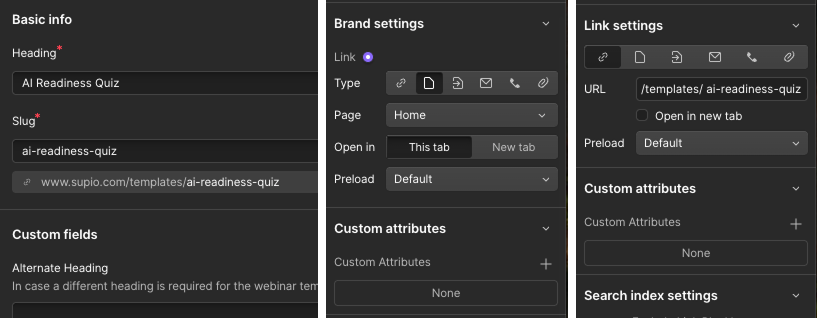
But if you’re on a static page with a regular link (text link, button, image, etc.) that points to a CMS page, you’ll need to enter the URL manually.
That’s when you skip the full https:// and use the partial URL instead.
Example:
✅ /templates/ai-readiness-quiz → works on staging + production
❌ https://www.supio.com/templates/ai-readiness-quiz → can break or cause redirect issues
Why Partial URLs Are Your Friend
- They’re staging-proof — works whether you’re on mysite.webflow.io or your custom domain.
- They’re less messy — no worrying about http vs https or “did I copy the right domain?”
- They’re future-proof — if you change domains, your links still work.
So next time Webflow’s link options feel a little… limited, just remember:
When in doubt, go partial.